Manually Registering the inepro Spider on Brother Devices
Overview
Brother Europe will natively integrate support for the inepro Spider RFID Reader into their standard device firmware in an upcoming release (ETA Q1 2027). Until that update is rolled out, administrators must manually register the reader’s hardware identification profiles within the device’s administrative portal to ensure immediate compatibility.
Configuration Requirements
To complete the setup, you will need the specific Vendor ID (VID) and Product ID (PID) values for the Spider RFID reader. Ensure you enter the exact values shown below:
- Card Reader Name: ineproID
- Vendor ID (idVendor): 1DA6
- Product ID (idProduct): 0110
Step-by-Step Instructions
Follow these steps to manually register the reader on your Brother hardware:
Access the Administrative Web Interface
- Open a web browser on a network-connected computer.
- Enter the device URL: https://[Printer's IP Address].
- Provide the administrative credentials to authenticate and select Login.
Navigate to Card Reader Settings
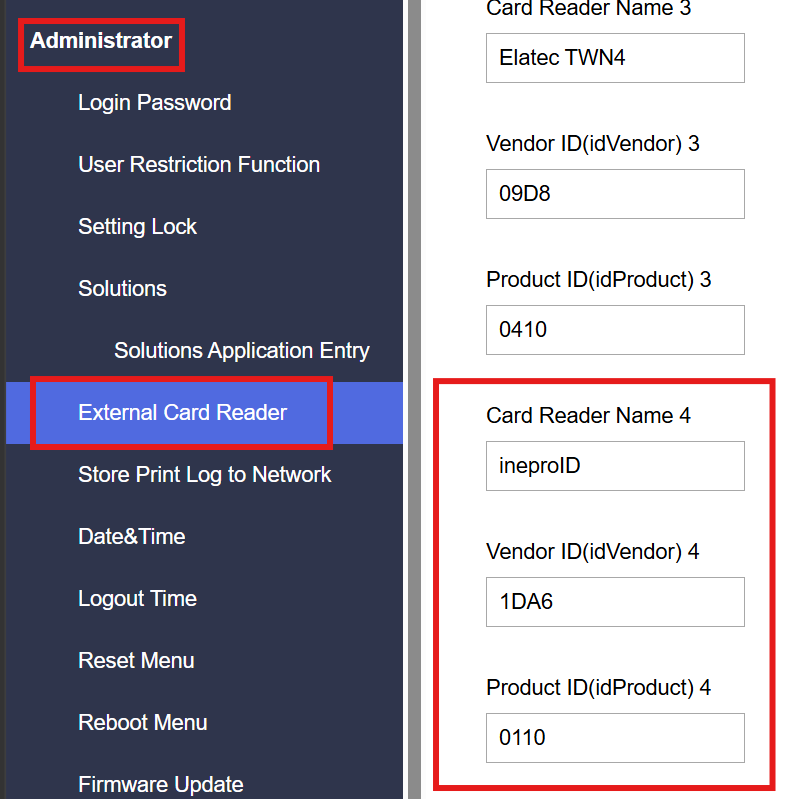
In the left-hand navigation pane, select the Administrator drop-down menu.
- Click on External Card Reader.
Register the Hardware Identifiers
- Locate the next available slot entry fields (e.g., Card Reader Name 4).
- Populate the parameters using the specified values:
- Card Reader Name: ineproID
- Vendor ID (idVendor): 1DA6
- Product ID (idProduct): 0110
- Click Submit at the bottom of the page to save your configurations.
Apply and Finalize
- Restart the Brother machine to load the newly registered peripheral properties.
- Connect the inepro Spider RFID reader to the machine’s designated USB port.
- Test by swiping a registered card over the device to confirm proper authentication functionality.
Was this article helpful?
That’s Great!
Thank you for your feedback
Sorry! We couldn't be helpful
Thank you for your feedback
Feedback sent
We appreciate your effort and will try to fix the article